Imagine using your large Smart TV screen as a monitor for your PC — watching files stored on your computer on a big display, presenting work on a bigger screen, or simply enjoying a more immersive experience. Connecting a Smart TV to a PC is entirely possible and easier than most people expect.
This guide covers the most practical and widely used methods to connect your Smart TV to a PC, whether you prefer a wired or wireless setup.
Table of Contents
Why Connect Your Smart TV to a PC?
There are several good reasons to connect your PC to your Smart TV. You might want to stream content from your computer to a larger screen. You could need a bigger display for presentations. You might want to mirror your desktop for a more comfortable browsing or gaming session. Or you could simply want to extend your workspace and use the TV as a second monitor. Whatever the reason, the connection process is not complicated once you know your options.
Method 1: Connecting via HDMI Cable
What You Need
An HDMI cable is the simplest and most reliable way to connect a Smart TV to a PC. HDMI carries both video and audio signals through a single cable. Most modern PCs, laptops, and Smart TVs have at least one HDMI port.
How to Do It
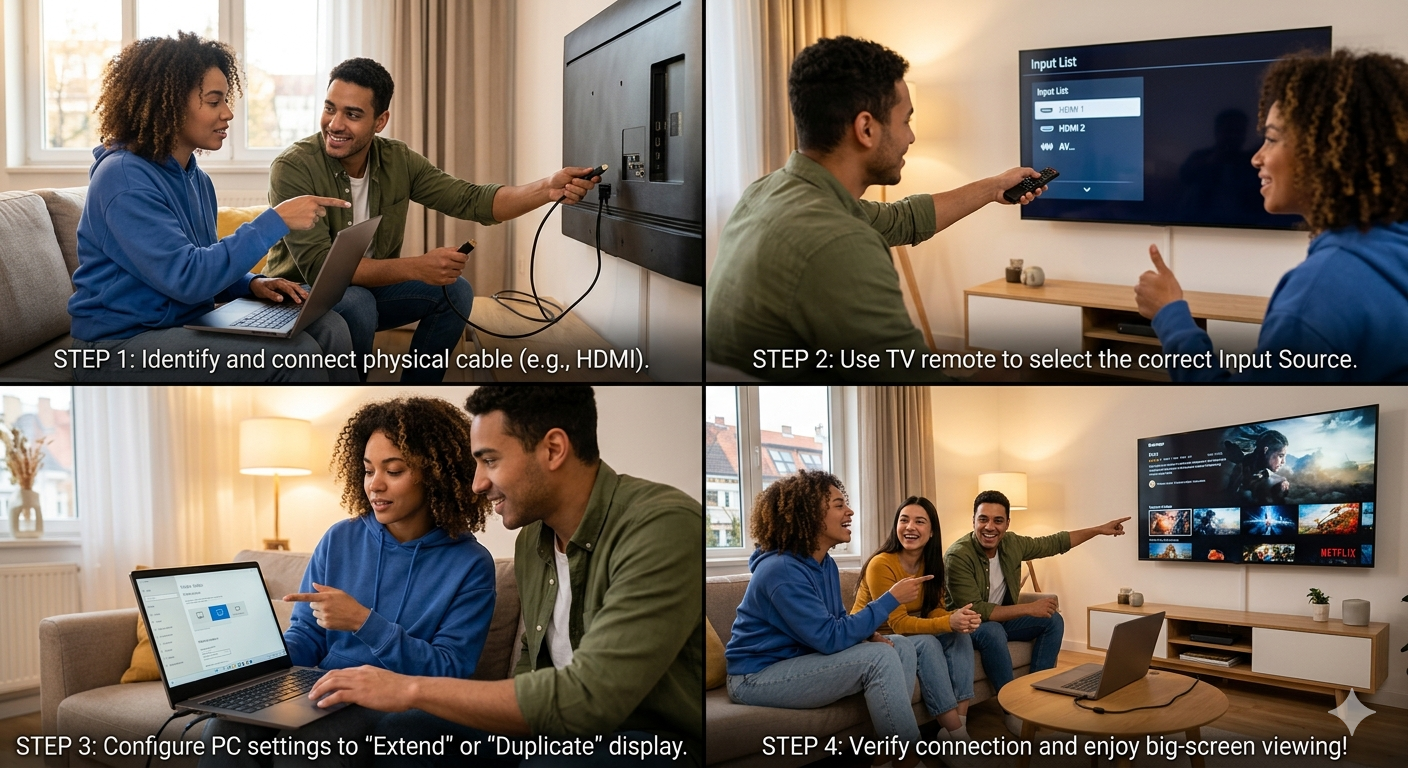
Turn off both devices. Connect one end of the HDMI cable to the output port on your PC and the other end to an available HDMI input port on your TV. Power on both. On your TV, navigate to the input/source selection menu and choose the correct HDMI port. On your PC, right-click the desktop and open Display Settings to configure the TV as a mirrored or extended display.
HDMI provides excellent picture quality and is generally the most stable connection option. If your PC only has a VGA or DisplayPort output, use an appropriate adapter to convert to HDMI.
Method 2: Connecting via Wi-Fi (Wireless)
How Wireless Connectivity Works
Most Smart TVs support wireless screen mirroring or casting through your home Wi-Fi network. Both your PC and Smart TV must be connected to the same Wi-Fi network for this to work.
Step-by-Step Instructions
On your Smart TV, go to Settings and enable Wi-Fi or screen sharing. On your Windows PC, open the Action Center (click the notification icon in the taskbar) and look for “Connect” or “Cast.” Your Smart TV should appear as an available device. Click it to initiate the wireless connection. You can also go to Settings > System > Display and use the option to detect a wireless display.
Method 3: Using Screen Share or Miracast
What Is Miracast?
Miracast is a wireless display standard built into many Smart TVs and Windows PCs. It projects your PC screen directly onto your TV without needing any streaming device or internet connection — just a direct wireless link between the two devices.
How to Enable It
On your Smart TV, find and enable the Screen Share, Miracast, or Wi-Fi Direct option in settings. On your Windows PC, press Windows Key + K to open the casting panel. Select your TV from the list. Your PC screen will then be mirrored on the TV in real time.
Method 4: Using Google Chromecast
What Is Chromecast?
Google Chromecast is a small streaming device that plugs into your TV’s HDMI port. Once set up on your Wi-Fi network, it allows you to cast content from your PC to your TV using the Google Chrome browser or Chromecast-enabled apps.
How to Use It
Plug the Chromecast into the TV’s HDMI port and set it up using the Google Home app. Then open Google Chrome on your PC, click the three-dot menu, and select “Cast.” Choose your Chromecast device. You can cast a specific tab, your full desktop, or content from a supported streaming service.
Method 5: Using an Android TV Box
An Android TV Box connects to your TV via HDMI and runs the Android operating system. Once connected to your home network, it can mirror content from your PC or run Android apps directly on your TV. It is a flexible option for those wanting smart features even on older televisions, and setup simply involves connecting the box via HDMI, joining your Wi-Fi, and using a screen mirroring app to link your PC.
Choosing the Right Method for You
If picture quality and reliability are your top priorities, HDMI is the best choice. For a fully cable-free setup, Miracast or Wi-Fi casting works well. If you already use Google Chrome heavily, Chromecast integrates very naturally. And if you want a full media hub for an older TV, an Android TV Box gives the most versatility.
🔗 Authority Reference
For a deeper technical understanding of how wireless display standards like Miracast and Chromecast work under the hood, Microsoft’s official documentation on wireless displays and Miracast is the most reliable and up-to-date source for Windows users.
Frequently Asked Questions (FAQs)
Can I connect any PC to any Smart TV?
In most cases, yes. As long as both devices have compatible HDMI ports or support the same wireless standard, the connection should work. Older TVs may not support Miracast but will still work with HDMI.
Do I need to install extra software to connect my PC to a Smart TV?
For HDMI, no additional software is needed. For wireless connections, Windows 10 and 11 have built-in casting features. Chromecast requires the Google Chrome browser. Some Smart TV brands may require their own companion apps.
Will connecting to a Smart TV affect my PC’s performance?
Not significantly for most tasks. Streaming high-resolution video wirelessly can use slightly more processing power, but modern PCs handle this without issue in the vast majority of cases.
What if my Smart TV does not show up when I try to cast from my PC?
Make sure both devices are on the same Wi-Fi network. Restart both devices and try again. Also check that your TV’s screen sharing or Miracast feature is actually switched on in its settings menu.
Can I use my Smart TV as a second monitor for my PC?
Yes. Using either HDMI or a wireless connection, you can configure your TV as an extended display in Windows Display Settings, allowing you to drag windows across both screens.